Getting Started with cURL: A Beginner's Guide to Talking to Servers
Learn cURL from scratch - what it is, why you need it, and how to make your first request to a server.
When I first started learning web development, I kept seeing tutorials mention “just use cURL” – but nobody explained what it actually was or why I should care. This guide is what I wish I’d had back then.
What is a Server, and Why Do We Need to Talk to It?
Before we dive into cURL, let’s understand the basics.
The Restaurant Analogy
Imagine you walk into a restaurant:
- You are the customer (client)
- The kitchen is the server
- Your order is the request
- The food is the response
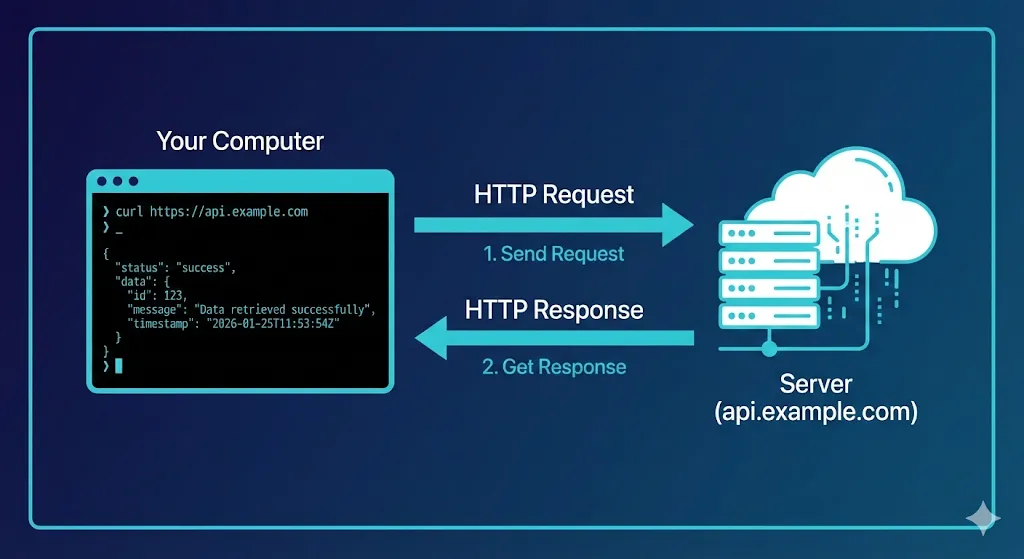
In the digital world, it’s the same concept:
- Your computer is the customer
- The web server is the kitchen
- Your cURL command is the order slip
- The data returned is your meal
What is a Server?
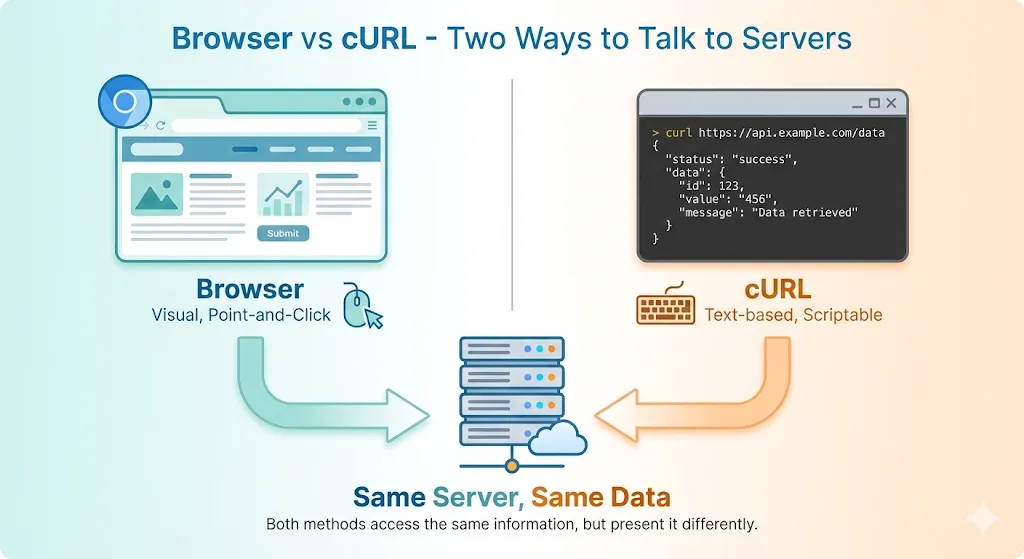
A server is just a computer that’s always on, waiting to respond to requests. When you visit a website:
- Your browser asks the server: “Hey, can you send me the homepage?”
- The server responds: “Sure, here it is!”
Why Use the Terminal?
You might wonder: “I can just use my browser, why do I need cURL?”
Great question! Browsers are great for viewing websites, but they’re not great for:
- Testing APIs (checking if your backend works)
- Automating tasks (running requests in scripts)
- Debugging (seeing exactly what’s being sent and received)
- Learning (understanding how HTTP actually works)
That’s where cURL comes in.
What is cURL?
cURL stands for Client URL. It’s a command-line tool that lets you send messages (requests) to servers and see their responses – all from your terminal.
Think of it as a text-based browser that shows you the raw conversation between your computer and a server.
Where cURL Fits in Development
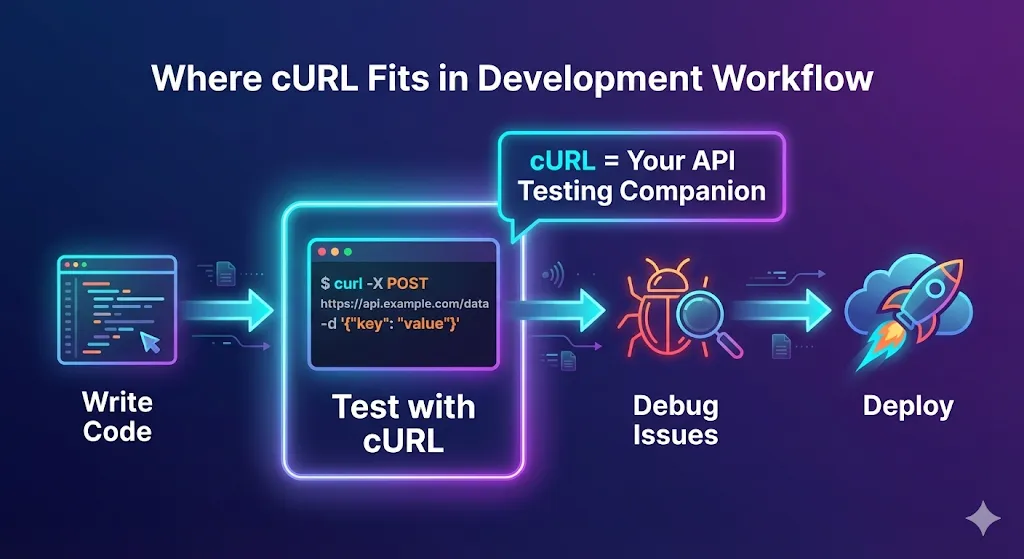
As a developer, you’ll use cURL to:
- Test if your API is working
- Debug why something isn’t loading
- Download files programmatically
- Learn how HTTP requests work
Your First cURL Request
Let’s start with the simplest possible command: fetching a webpage.
The Basic Command
Open your terminal and type:
curl https://www.example.comThat’s it! Press Enter, and you’ll see a bunch of HTML code flood your screen.
What just happened?
- cURL sent a message to
example.com - The server received it and sent back the HTML
- cURL printed that HTML to your terminal
Understanding What You See
The stuff that flooded your screen is HTML – the code that makes up web pages. It looks messy in the terminal, but that’s exactly what your browser receives and turns into a nice-looking website.
Understanding the Response
When you make a request, the server sends back a response. Let’s understand what that means.
Breaking Down a Response
A response has three main parts:
| Part | What It Is | Example |
|---|---|---|
| Status | Did it work? | 200 OK, 404 Not Found |
| Headers | Metadata about the response | Content type, date, etc. |
| Body | The actual data | HTML, JSON, etc. |
Seeing the Status Code
Let’s see the status code without the full HTML:
curl -I https://www.example.comThe -I flag means “show me just the headers.” You’ll see something like:
HTTP/1.1 200 OK
Content-Type: text/html; charset=UTF-8
Date: Mon, 15 Jan 2024 10:00:00 GMT
That 200 OK means: “Success! The server found what you asked for.”
Common Status Codes
| Code | Meaning | When You See It |
|---|---|---|
| 200 | OK | Everything worked |
| 404 | Not Found | The page doesn’t exist |
| 500 | Server Error | Something broke on the server |
| 403 | Forbidden | You don’t have permission |
Making Different Types of Requests
There are different “methods” for talking to servers. Think of them as different types of questions:
GET Request: “Can I See That?”
GET is the default. It means: “Please give me this resource.”
curl https://api.github.com/users/githubThis asks GitHub’s API: “Tell me about the user named ‘github’.”
POST Request: “Here’s Some Data”
POST means: “I’m sending you some data to process.”
Imagine filling out a contact form. When you click “Submit,” that’s a POST request.
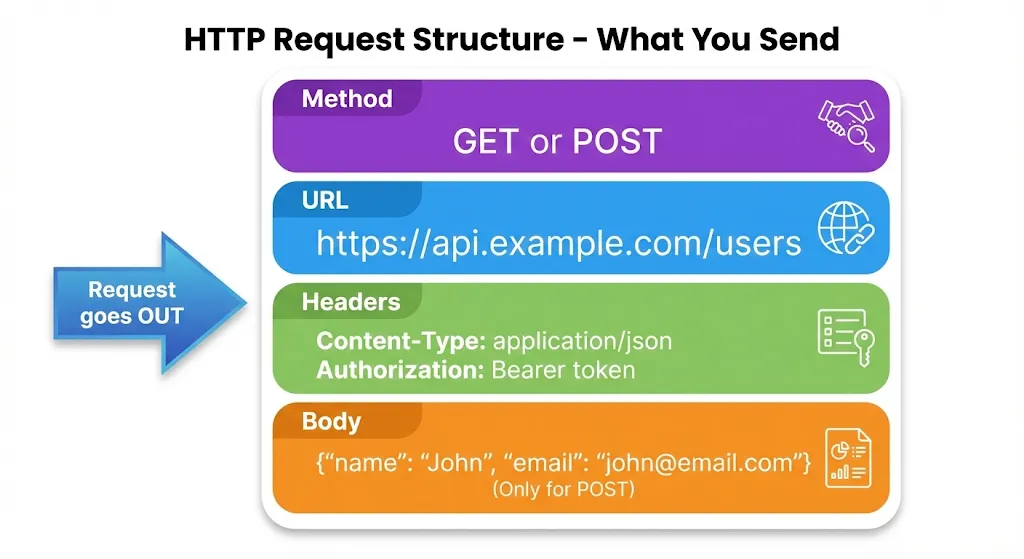
curl -X POST https://httpbin.org/post \
  -H "Content-Type: application/json" \
  -d '{"name":"Anik","message":"Hello!"}'
Let’s break this down:
-X POST= Use the POST method-H "Content-Type: application/json"= Tell the server we’re sending JSON-d '{...}'= The actual data we’re sending
Why two different methods?
- GET is for reading/retrieving
- POST is for creating/sending data
Using cURL to Talk to APIs
APIs (Application Programming Interfaces) are how different software talks to each other. cURL is perfect for testing them.
Example: Getting Weather Data
curl wttr.in/London?format=3This asks a weather API: “What’s the weather in London?”
The response might be:
London: ⛅️ +15°CExample: Checking if a Website is Up
curl -sSf https://www.google.com > /dev/null && echo "Google is up!" || echo "Google is down!"This silently checks if Google responds, then tells you if it’s working.
Example: Getting Your Public IP
curl ifconfig.meThis asks a service: “What IP address am I connecting from?”
Common Mistakes Beginners Make
Let me save you some frustration:
❌ Forgetting the Protocol
# Wrong:
curl www.example.com

# Right:
curl https://www.example.com
Always include https:// or http:// at the start.
❌ Not Following Redirects
# This might fail:
curl http://bit.ly/3xyz

# This follows the redirect:
curl -L http://bit.ly/3xyz
The -L flag tells cURL to follow redirects (like URL shorteners).
❌ Getting Overwhelmed by Output
# This shows everything (messy):
curl https://api.example.com/big-response

# This limits to first 10 lines:
curl https://api.example.com/big-response | head -10
Use | head or | less to control what you see.
❌ Trying to Learn All Flags at Once
cURL has hundreds of options. Don’t try to learn them all. Start with:
- Basic requests (no flags)
-Ifor headers-Lfor redirects-X POSTfor sending data
Add more as you need them.
Practice Makes Perfect
Try These Commands
- Get a joke:
curl https://official-joke-api.appspot.com/random_joke- Get weather:
curl wttr.in/Mumbai?0- Get your IP:
curl ipinfo.io/ip- Check a website’s status:
curl -I https://www.github.comWhat to Remember
| Concept | Simple Explanation |
|---|---|
| cURL | A tool to talk to servers from terminal |
| GET | ”Give me this data” |
| POST | ”Here’s some data for you” |
| Status 200 | Success! |
| Status 404 | Not found |
| -I flag | Show headers only |
| -L flag | Follow redirects |
Wrapping Up
cURL might seem intimidating at first, but it’s really just a way to have a conversation with servers. You ask for something, they respond. That’s it.
Start simple:
- Make basic GET requests
- Look at the responses
- Try POST with simple data
- Gradually explore more flags
Remember, every expert was once a beginner who didn’t give up. Keep practicing, and soon cURL will feel as natural as using your browser.