How a Browser Works: A Beginner-Friendly Guide to Browser Internals
From URL to pixels: understanding what happens inside your browser when you visit a website.
You type google.com, press Enter, and within seconds, a fully-formed webpage appears on your screen. But what actually happened in those seconds? Let’s open the hood and look inside.
What Is a Browser, Really?
Beyond “it opens websites,” a browser is essentially a sophisticated document reader and display engine.
Think of it like this:
- A PDF reader knows how to open, parse, and display PDF files
- A video player knows how to decode and play video files
- A web browser knows how to fetch, parse, and render web pages (HTML, CSS, JavaScript)
Your browser is a collection of specialized components working together to turn code (HTML, CSS, JS) into the visual experience you see on screen.
The Big Question: What Happens After You Type a URL?
Let’s follow the complete journey from typing a URL to seeing pixels on your screen.
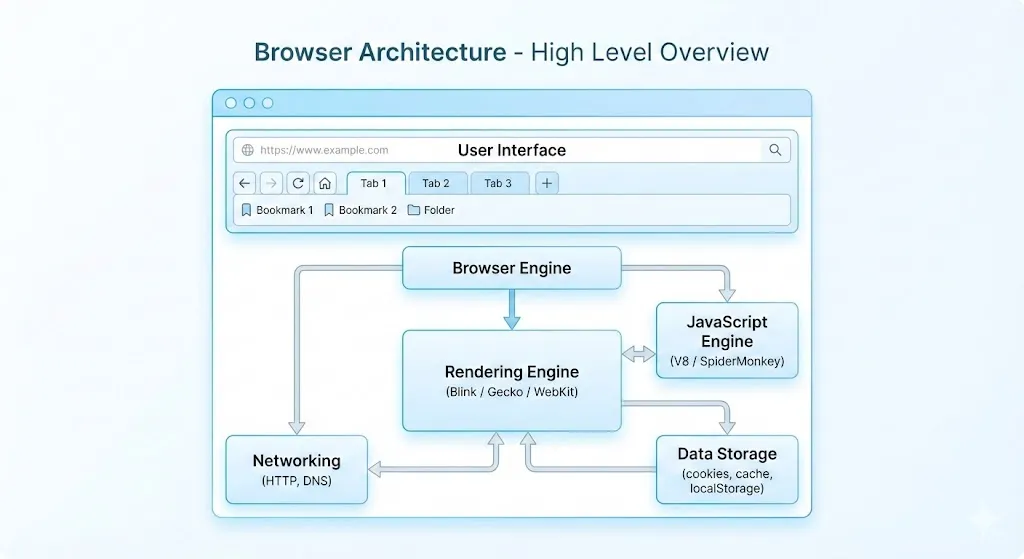
Part 1: The Browser’s Main Components
Before we dive into the journey, let’s meet the key players inside your browser:
1. User Interface (UI)
This is everything you see and interact with:
- Address bar: Where you type URLs
- Tabs: Multiple pages in one window
- Back/Forward buttons: Navigation history
- Bookmark bar: Your saved links
- Settings menu: Browser preferences
Think of the UI as the dashboard of a car — all the controls you use to drive.
2. Browser Engine
The browser engine acts as a coordinator or project manager. It:
- Takes commands from the UI (like “go back” or “reload”)
- Tells the rendering engine what to display
- Manages communication between components
Simple analogy: If the browser is a restaurant, the browser engine is the maître d’ who coordinates between the kitchen, waiters, and customers.
3. Rendering Engine
This is where the magic happens! The rendering engine:
- Reads HTML and builds the DOM
- Reads CSS and builds the CSSOM
- Combines them into a render tree
- Calculates layout and paints pixels
Popular rendering engines:
- Blink: Used by Chrome, Edge, Opera
- WebKit: Used by Safari
- Gecko: Used by Firefox
Simple analogy: The rendering engine is the chef who takes raw ingredients (HTML, CSS) and turns them into a finished dish (the webpage).
4. Networking Component
This handles all communication with the internet:
- DNS lookups (finding server addresses)
- HTTP requests (asking for files)
- Downloading HTML, CSS, images, JavaScript
- Caching files for faster future visits
Simple analogy: The networking component is the delivery driver who fetches ingredients from the market.
5. JavaScript Engine
This executes JavaScript code:
- Adds interactivity to pages
- Handles user interactions
- Modifies the DOM dynamically
Examples: V8 (Chrome), SpiderMonkey (Firefox)
Simple analogy: The JavaScript engine is the special effects crew that makes the page come alive with animations and interactions.
Part 2: The Journey from URL to Pixels
Now let’s follow what happens when you type example.com and press Enter.
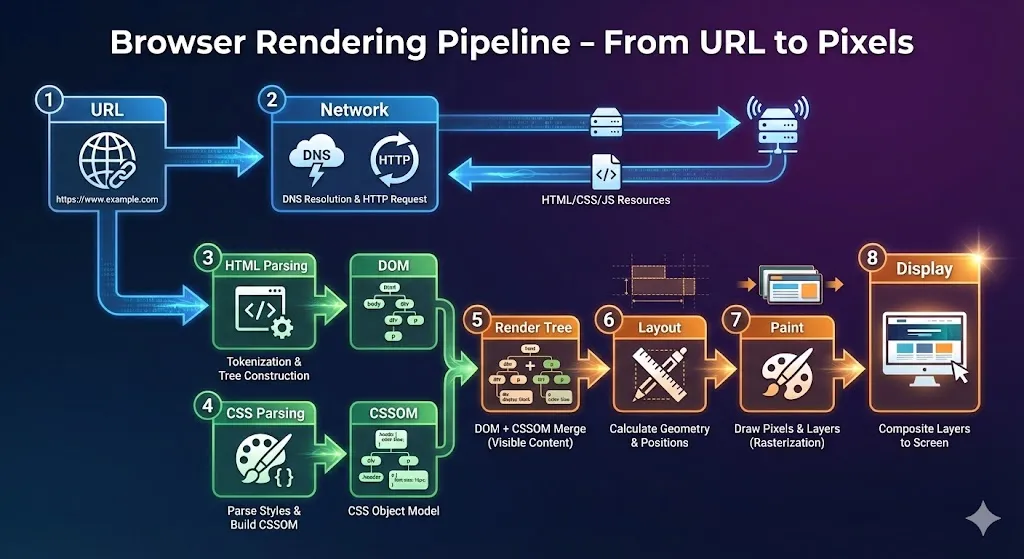
Step 1: You Type the URL
You type: https://example.com/blog/hello-world
                │       │              │
                │       │              └── Path (specific page)
                │       └── Domain (which website)
                └── Protocol (how to communicate)
The browser breaks down what you typed into meaningful parts.
Step 2: Find the Server (DNS Lookup)
The networking component asks: “What’s the IP address for example.com?”
This is like looking up a phone number in a phonebook — you know the name, but you need the number to call.
Step 3: Establish Connection (TCP Handshake)
The browser and server perform a “handshake” to establish communication:
- Browser: “Can we talk?” (SYN)
- Server: “Yes, I’m here!” (SYN-ACK)
- Browser: “Great, let’s begin!” (ACK)
Step 4: Fetch the HTML (HTTP Request)
The browser sends a request:
GET /blog/hello-world HTTP/1.1
Host: example.com
Translation: “Please send me the webpage at this address.”
Step 5: Receive the Files (HTTP Response)
The server responds with HTML, and the browser starts downloading CSS, JavaScript, and images referenced in that HTML.
Part 3: Understanding Parsing (The Simple Math Example)
Before we look at how browsers parse HTML, let’s understand what “parsing” means with a simple example.
What Is Parsing?
Parsing means taking a string of characters and giving it structure/meaning.
Example: Parsing a Math Expression
Consider this expression: 2 + 3 * 4
If you process left-to-right: (2 + 3) * 4 = 20 ❌ Wrong!
If you understand operator precedence: 2 + (3 * 4) = 14 ✓ Correct!
The parser creates a tree structure to represent this:
       +
      / \
     2   *
        / \
       3   4
This tree shows that multiplication happens first, then addition.
Parsing = Breaking down text into a structured representation that a computer can understand and process.
Part 4: From HTML to DOM
What Is the DOM?
DOM (Document Object Model) is a tree representation of your HTML.
Analogy: A Family Tree
Just like a family tree shows relationships (parent, child, sibling), the DOM shows the relationships between HTML elements.
HTML Parsing in Action
Consider this simple HTML:
<!DOCTYPE html>
<html>
  <head>
    <title>My Page</title>
  </head>
  <body>
    <h1>Hello World</h1>
    <p>This is a paragraph.</p>
  </body>
</html>
The browser parses this and creates the DOM tree:
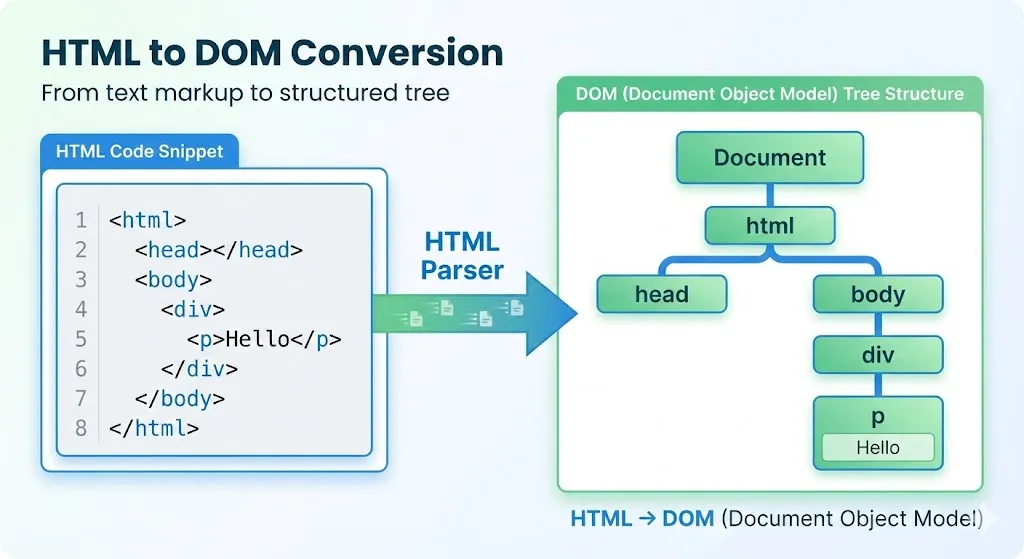
Document
└── html
    ├── head
    │   └── title
    │       └── "My Page"
    └── body
        ├── h1
        │   └── "Hello World"
        └── p
            └── "This is a paragraph."
Why a tree? Because HTML is nested — elements contain other elements, just like branches contain smaller branches.
Part 5: From CSS to CSSOM
What Is the CSSOM?
CSSOM (CSS Object Model) is like the DOM, but for CSS. It’s a tree representation of all the styles.
CSS Parsing Example
body {
  font-size: 16px;
  color: black;
}

h1 {
  font-size: 32px;
  color: blue;
}

p {
  margin: 10px;
}
The browser creates the CSSOM:
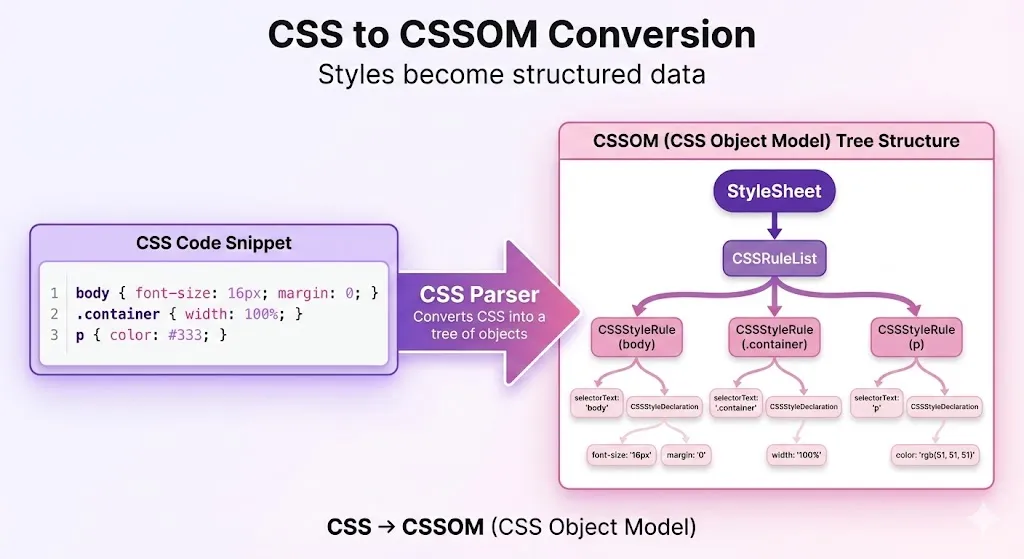
CSSOM
├── body
│   ├── font-size: 16px
│   └── color: black
├── h1
│   ├── font-size: 32px
│   └── color: blue
└── p
    └── margin: 10px
Part 6: Bringing It Together — The Render Tree
Now the browser combines DOM + CSSOM to create the Render Tree.
What Is the Render Tree?
The render tree contains only the visible elements with their computed styles:
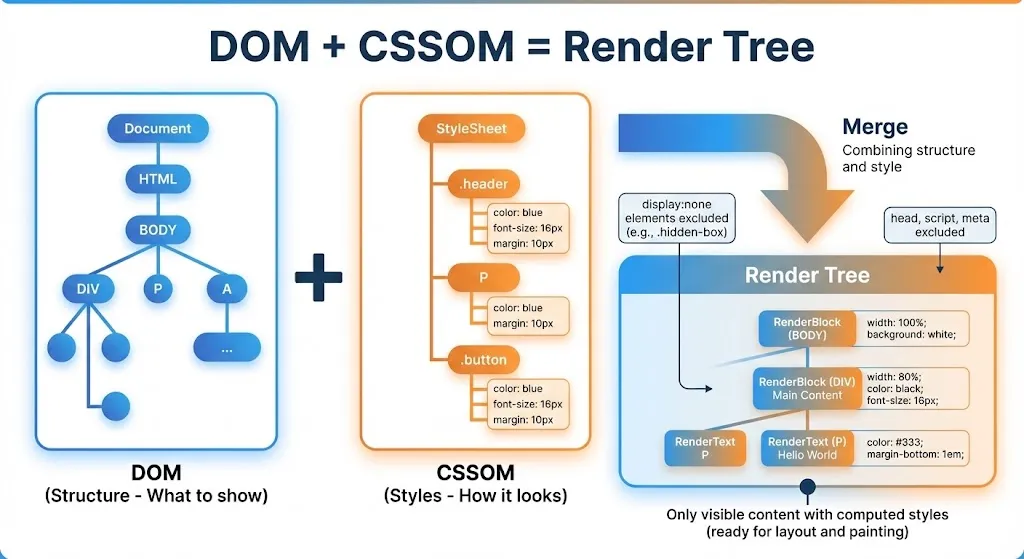
DOM Tree                CSSOM               Render Tree
─────────────────────────────────────────────────────────
html                    body {              [ViewPort]
├── head                    font: 16px           │
│   └── title (hidden)  }                        ▼
└── body                h1 {                [Layout Box: body]
    ├── h1                  size: 32px          ├── [Box: h1 "Hello"]
    │   └── "Hello"         color: blue         │       font: 32px blue
    └── p                 }                   └── [Box: p "This is..."]
        └── "This is..."  p {                     font: 16px, margin: 10px
                              margin: 10px
}Important: Invisible elements (like <head>, <script>, or display: none) are NOT in the render tree.
Part 7: From Render Tree to Pixels
Now the browser has a tree of what to display. But where does everything go on screen?
Step 1: Layout (Reflow)
The browser calculates the exact position and size of every element:
Render Tree          Layout Process
─────────────────────────────────────────
[body]               Body: width=1200px, height=800px
  ├── [h1]               positioned at (0, 0)
  │     "Hello"        H1: width=1200px, height=40px
  │                          positioned at (8, 8)
  └── [p]              P: width=1200px, height=20px
        "This is..."         positioned at (8, 56)
The browser asks:
- How wide is each element?
- How tall is each element?
- Where does it start (x, y coordinates)?
- Does it need to wrap to a new line?
Step 2: Paint
Now the browser actually draws the pixels:
Layout Tree          Paint Process
─────────────────────────────────────────
[body]               1. Paint background color
  ├── [h1]           2. Paint text "Hello" in blue
  └── [p]            3. Paint text "This is..." in black
                     4. Add margins and spacing
Painting involves:
- Background colors
- Text
- Borders
- Shadows
- Images
Step 3: Composite
Finally, the browser combines all painted layers into the final image you see on screen.
┌─────────────────────────────────────┐
│  1. HTML Parsing → DOM              │
│  2. CSS Parsing → CSSOM             │
│  3. DOM + CSSOM → Render Tree       │
│  4. Layout (position & size)        │
│  5. Paint (draw pixels)             │
│  6. Composite (final image)         │
│                                     │
│         [PIXELS ON SCREEN]          │
└─────────────────────────────────────┘
The Complete Flow: From URL to Pixels
Let’s put it all together:
USER ACTION          BROWSER INTERNALS
─────────────────────────────────────────────────────────
Type URL             UI → Browser Engine
     │                    ↓
     │               Networking Component
     │                    ↓
Press Enter          DNS Lookup (find server IP)
     │                    ↓
     │               TCP Connection (handshake)
     │                    ↓
     │               HTTP Request (ask for HTML)
     │                    ↓
     │               Receive HTML Response
     │                    ↓
     │               HTML Parsing → DOM Tree
     │                    ↓
     │               Fetch CSS → CSSOM Tree
     │                    ↓
     │               DOM + CSSOM → Render Tree
     │                    ↓
     │               Layout (calculate positions)
     │                    ↓
     │               Paint (draw pixels)
     │                    ↓
     │               Composite (layers)
     │                    ↓
     └──────────────► Display on screen!
Don’t Worry About Memorizing Everything
If this feels like a lot, that’s okay! Here’s what’s important to remember:
- Browser = Document reader for web files
- Components work together: UI, Engine, Renderer, Network, JS
- Parsing = Structured understanding of code
- DOM = Tree of HTML elements
- CSSOM = Tree of styles
- Render Tree = DOM + CSSOM (visible only)
- Layout → Paint → Display turns code into pixels
The details will become clearer as you build more websites. For now, just understand the flow.
Summary: Key Terms to Know
| Term | Simple Definition |
|---|---|
| DOM | Tree representation of your HTML |
| CSSOM | Tree representation of your CSS |
| Render Tree | DOM + CSSOM combined (what actually gets displayed) |
| Layout/Reflow | Calculating where everything goes on screen |
| Paint | Drawing the actual pixels |
| Parsing | Converting text into structured data |