Understanding HTML Tags and Elements
Learn the difference between HTML tags and elements, how they work together, and the basics of building webpage structure.
Imagine you’re building a house. Before you add paint, furniture, or decorations, you need walls, a roof, and a foundation. HTML is the walls and structure of every webpage — without it, there’s nothing to style or make interactive.
What Is HTML and Why Do We Use It?
HTML (HyperText Markup Language) is the standard language for creating webpages. But what does that actually mean?
Think of a webpage like a human body:
- HTML is the skeleton — the structure that holds everything up
- CSS is the skin and clothing — makes it look good
- JavaScript is the muscles and brain — makes it move and think
Without HTML (the skeleton), there’s nothing to style or animate.
What HTML Actually Does
HTML tells the browser:
- “This is a heading”
- “This is a paragraph”
- “This is an image”
- “This is a link”
It provides structure and meaning to content.
What Is an HTML Tag?
Analogy: Labels on Boxes
Imagine you’re organizing a storage room. You have boxes, and you put labels on them to indicate what’s inside:
- A label saying “BOOKS” on a box
- A label saying “CLOTHES” on another
- A label saying “FRAGILE” to indicate special handling
HTML tags are like these labels. They mark the beginning and end of different types of content.
The Anatomy of a Tag
Tags are written with angle brackets < >:
<p>        ← This is an opening tag
</p>       ← This is a closing tag (note the forward slash)
Opening tag: <p> — “A paragraph starts here”
Closing tag: </p> — “The paragraph ends here”
What Is an HTML Element?
Here’s where people often get confused. Let’s clear it up:
Tag vs Element: The Key Difference
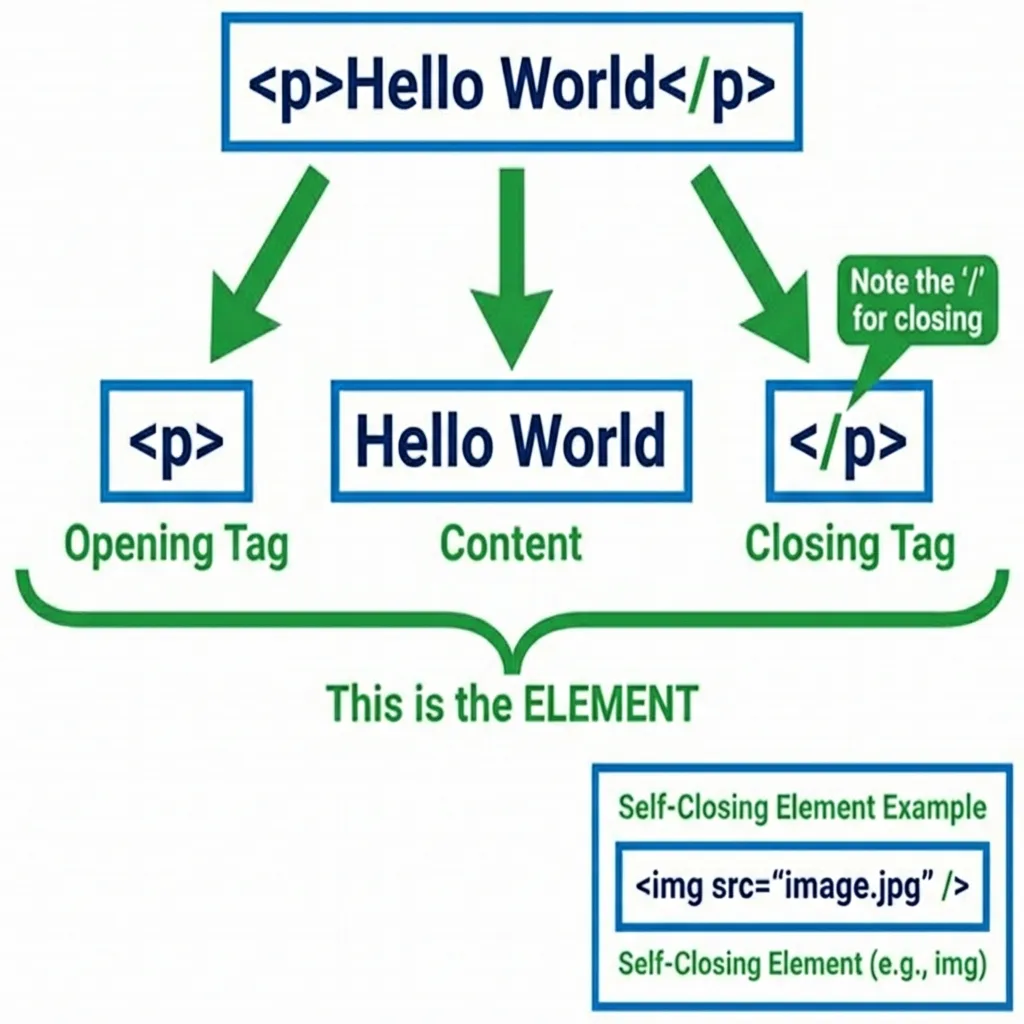
┌─────────────────────────────────────┐
│  <p> This is a paragraph. </p>    │
│  └──┘ └────────────────────┘ └───┘  │
│    │            │              │    │
│    │            │              │    │
│  OPENING      CONTENT      CLOSING │
│    TAG                         TAG  │
│                                     │
│  └────────────────────────────────┘ │
│              ELEMENT                │
└─────────────────────────────────────┘- Tag: The marker itself (
<p>or</p>) - Element: The complete thing — opening tag + content + closing tag
Simple Examples
| Element | Opening Tag | Content | Closing Tag |
|---|---|---|---|
<h1>Hello</h1> | <h1> | Hello | </h1> |
<p>Hi there</p> | <p> | Hi there | </p> |
<div>Content</div> | <div> | Content | </div> |
Remember: Tags are the labels; elements are the complete labeled boxes with content inside.
Self-Closing (Void) Elements
Not all elements have content. Some elements stand alone and don’t need a closing tag.
Analogy: Single-Purpose Signs
Think of a “STOP” sign. It doesn’t surround anything — it just exists as a complete instruction by itself.
Self-closing elements work the same way. They don’t wrap around content; they are the content.
Common Self-Closing Elements
<!-- Image - displays a picture -->
<img src="photo.jpg" alt="A cat">

<!-- Line break - creates a new line -->
<br>

<!-- Horizontal rule - creates a line across the page -->
<hr>

<!-- Input - creates a form field -->
<input type="text">

<!-- Meta - provides page information (goes in <head>) -->
<meta charset="UTF-8">Note: You might also see these written with a slash at the end: <br />, <img />. This is XHTML style. In HTML5, both <br> and <br /> work, but <br> is preferred.
Common HTML Tags You’ll Use Daily
Let’s look at the essential tags every beginner should know:
Headings (Like Outline Levels)
<h1>Main Title of the Page</h1>
<h2>Major Section Heading</h2>
<h3>Subsection</h3>
<h4>Smaller Heading</h4>
<h5>Even Smaller</h5>
<h6>Smallest</h6>
Think of headings like an outline for a paper:
h1= Titleh2= Chapterh3= Section- And so on…
Paragraphs
<p>This is a paragraph of text. It can be long or short.</p>
<p>This is another paragraph. Each paragraph is separated by space.</p>
Links (Anchor Tags)
<a href="https://google.com">Click me to go to Google</a>The href attribute tells the browser where to go.
Images
<img src="my-photo.jpg" alt="Description of the image">src= source (the image file)alt= alternative text (for accessibility)
Divisions (Containers)
<div>
  <h2>A Section</h2>
  <p>Some content inside the section.</p>
</div>
<div> is a generic container — like a box that holds other elements.
Spans (Inline Containers)
<p>This is a paragraph with <span>highlighted text</span> in it.</p><span> is like <div> but for small pieces of text within a line.
Block-Level vs Inline Elements
This is one of the most important concepts in HTML. It affects how elements appear on the page.
Analogy: Blocks vs Words
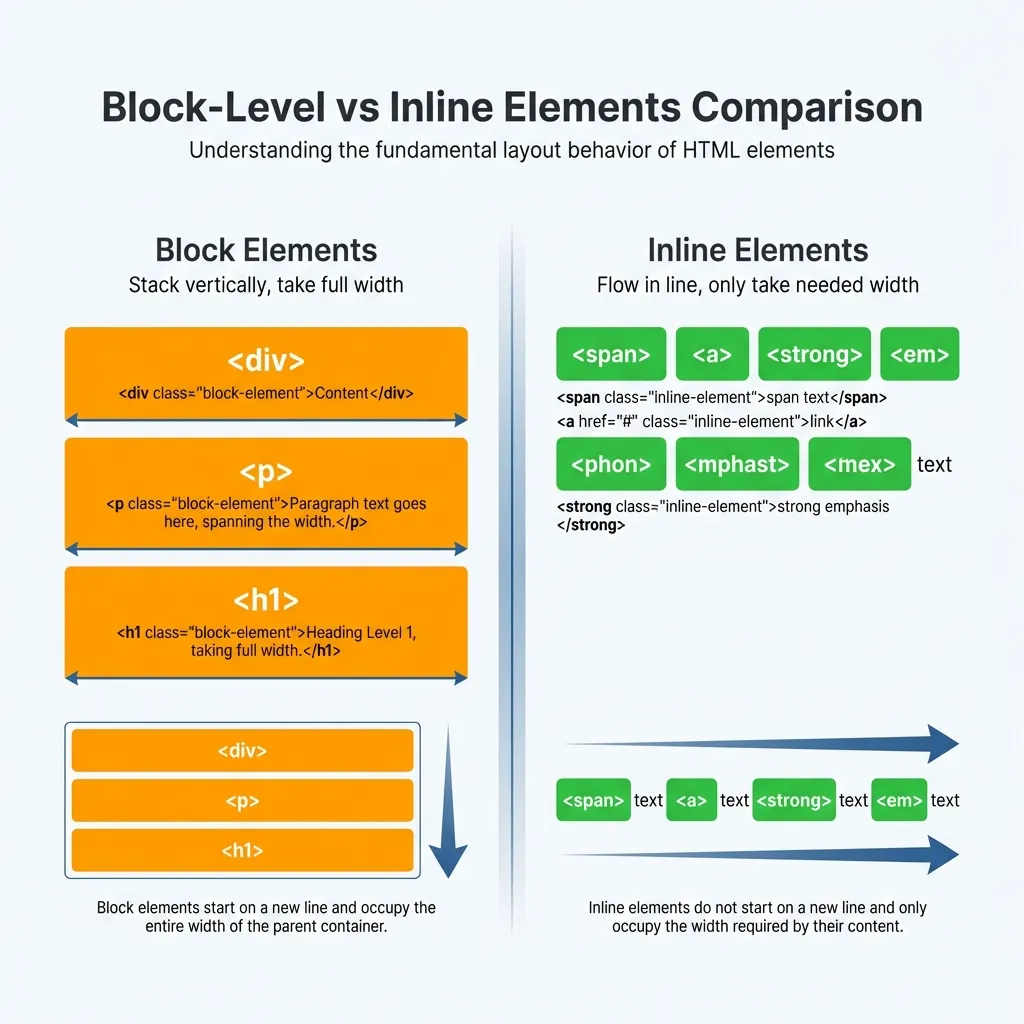
Block-level elements are like building blocks:
- Each one starts on a new line
- Takes up the full width available
- Stacks vertically like blocks
Inline elements are like words in a sentence:
- They flow within text
- Only take up as much space as needed
- Sit side by side
Block-Level Elements
<div>A div element</div>
<div>Another div - notice it starts on a new line</div>
<p>This is a paragraph (block)</p>
<h1>This is a heading (block)</h1>
Visual result:
┌─────────────────────────────────┐
│ A div element                   │
└─────────────────────────────────┘
┌─────────────────────────────────┐
│ Another div - notice...         │
└─────────────────────────────────┘
┌─────────────────────────────────┐
│ This is a paragraph (block)     │
└─────────────────────────────────┘
┌─────────────────────────────────┐
│ This is a heading (block)       │
└─────────────────────────────────┘
Common block elements: div, p, h1-h6, section, article, header, footer
Inline Elements
<p>
  This is a paragraph with
  <span>span</span>
  and
  <a href="#">link</a>
  elements inside.
</p>
Visual result:
This is a paragraph with span and link elements inside.
                         ↑      ↑
                      (inline) (inline)
                      inline elements flow within text
Common inline elements: span, a, strong, em, img, code
Why This Matters
<!-- Block elements stack -->
<div>Block 1</div>
<div>Block 2</div>

<!-- Inline elements flow -->
<span>Inline 1</span>
<span>Inline 2</span>
<span>Inline 3</span>
Result:
Block 1        ← Full width, new line
Block 2        ← Full width, new line
Inline 1 Inline 2 Inline 3  ← Flow together on same line
A Simple Complete Example
Let’s put it all together:
<!DOCTYPE html>
<html>
<head>
  <title>My First Page</title>
</head>
<body>
  <h1>Welcome to My Website</h1>

  <p>This is my first webpage. I'm learning HTML!</p>

  <h2>About Me</h2>

  <p>
    I love <strong>coding</strong> and
    <em>building websites</em>.
  </p>

  <div>
    <h3>My Hobbies</h3>
    <p>Reading, gaming, and hiking.</p>
  </div>

  <p>
    Visit my <a href="https://example.com">portfolio</a>.
  </p>
</body>
</html>
Breakdown:
<!DOCTYPE html>: Tells the browser this is HTML5<html>: The root element (contains everything)<head>: Contains metadata (title, styles, etc.)<body>: Contains visible content<h1>,<h2>,<h3>: Headings<p>: Paragraphs<div>: Container<strong>,<em>: Inline formatting<a>: Link
Try It Yourself: Inspect in Browser
One of the best ways to learn HTML is to inspect existing webpages:
- Open any website (like google.com)
- Right-click anywhere on the page
- Select “Inspect” or “Inspect Element”
- Look at the HTML structure in the Elements tab
You’ll see:
- How real websites use tags
- The nesting of elements
- Block vs inline in action
Pro tip: Try inspecting your favorite websites to see how they’re built!
Quick Reference Table
| Tag | Type | Purpose |
|---|---|---|
<h1> - <h6> | Block | Headings (h1 = most important) |
<p> | Block | Paragraph |
<div> | Block | Generic container |
<span> | Inline | Generic inline container |
<a> | Inline | Link to another page |
<img> | Inline (self-closing) | Display an image |
<br> | Inline (self-closing) | Line break |
<strong> | Inline | Bold text |
<em> | Inline | Italic text |
Key Takeaways
- HTML is the skeleton of a webpage — it provides structure
- Tags are like labels that mark the beginning and end of content
- An element = opening tag + content + closing tag
- Self-closing tags don’t have content (like
<img>,<br>) - Block elements stack vertically (like building blocks)
- Inline elements flow horizontally (like words)
- Inspect in browser to see HTML in action on real websites